Accessibility is often treated as a specialist requirement for large institutions. For a small course creator, most of it is a handful of habits that cost very little.
And they help far more people than the ones they were designed for: learners on phones, in noisy places, on slow connections, working in a second language, or simply tired.
Captions: the highest-value change
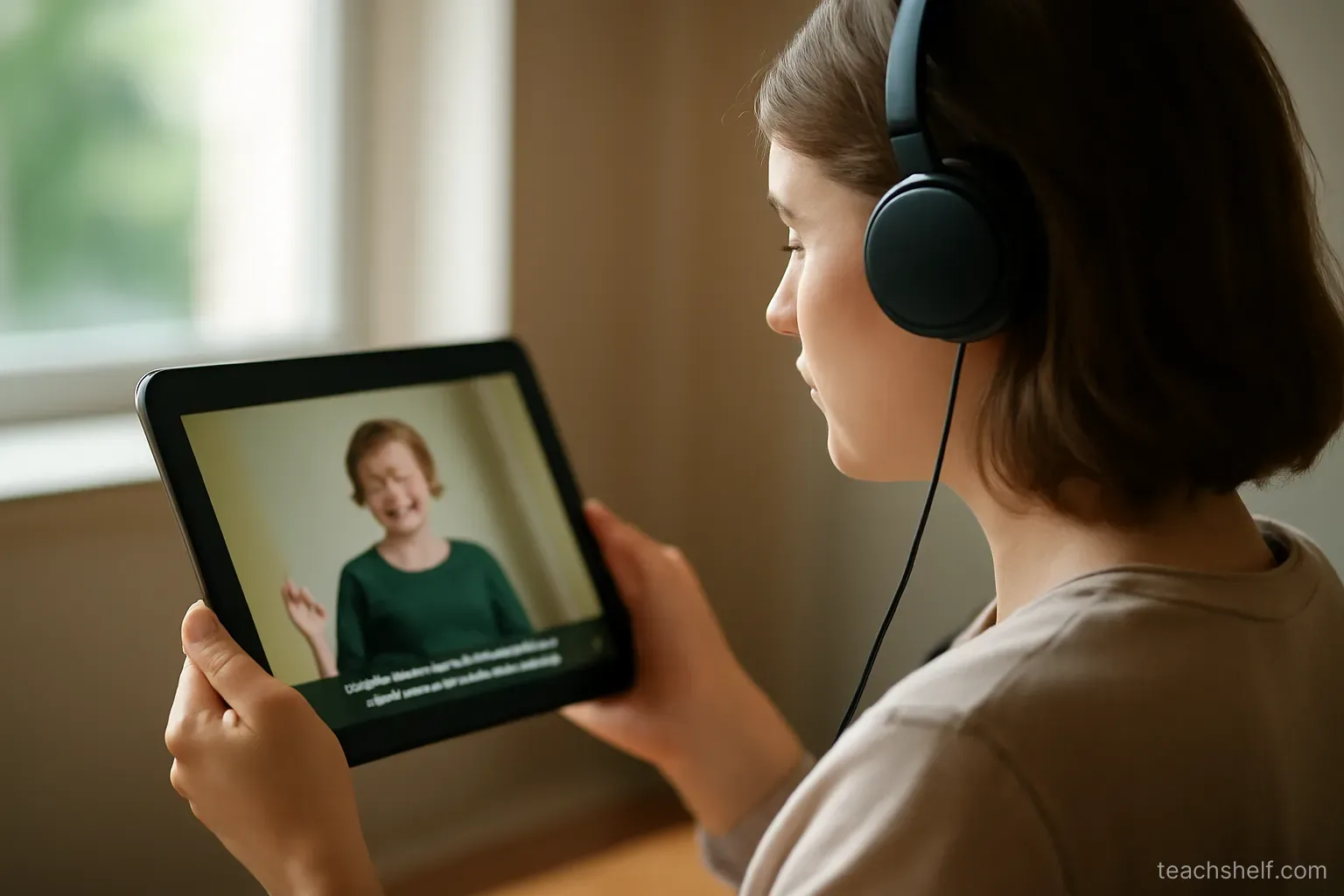
- Add captions to every video. Auto-captions plus a correction pass is enough for most courses.
- Fix the technical terms — this is where auto-captions fail, and it is the part that matters most.
- Provide transcripts where you can. Many learners prefer to read, and transcripts are searchable.
- Who this helps: deaf and hard-of-hearing learners, second-language learners, anyone watching without sound, and anyone who wants to scan rather than watch.
Speaking and presenting
- Describe what is on screen rather than pointing silently. Saying which element you mean helps everyone follow.
- Do not rely on colour alone to convey meaning — add a label or shape.
- Read out anything important that appears only as text on screen.
- Speak at a steady pace and pause between ideas.
- Avoid rapid flashing or strobing effects entirely — these can trigger seizures.
Readable materials
- Use large enough text in slides and screen recordings — what is readable on your monitor is unreadable on a phone.
- Keep contrast strong between text and background.
- Use real headings in documents rather than just making text bigger — this is what screen readers use to navigate.
- Give images meaningful alternative text that describes what matters, not just what it is.
- Avoid text inside images where possible — it cannot be read by assistive technology or resized.
- Use descriptive link text rather than click here.
Video and audio
- Good audio is an accessibility feature, not just a quality one. Poor audio is hardest on the people who most need clarity.
- Offer playback speed control — some learners need slower, some faster.
- Offer quality options for slow connections.
- Allow downloads where you can, for learners with unreliable internet.
- Keep background music quiet or absent — it interferes with speech comprehension significantly.
Course structure
- Consistent navigation so learners do not relearn the interface each section.
- Clear lesson titles that describe content.
- State the time each lesson takes.
- Do not rely on timed activities unless the timing is genuinely part of the skill.
- Offer more than one way to demonstrate learning where practical.
Documents and downloads
- Use accessible formats rather than scanned images of text, which are unreadable to assistive technology.
- Structure documents with headings.
- Provide editable versions of worksheets where possible so learners can complete them digitally.
- Keep file sizes reasonable for slow connections.
Testing without specialist tools
- Watch a lesson with the sound off and see whether the captions carry it.
- Listen without watching and see whether you can follow.
- View it on a phone and check text sizes.
- Try navigating with the keyboard only, without a mouse.
- Zoom the page to double size and see whether anything breaks.
- Ask learners whether anything is difficult to use — and mean it, because most people will not volunteer it.
When someone asks for an adjustment
- Respond promptly and take it seriously.
- Ask what would help rather than assuming — they know their needs.
- Do what you can, and be honest about what you cannot — a straightforward answer is better than silence.
- Do not require disclosure of a diagnosis in order to help.
- Fix it for everyone where the change is general rather than making it a special case.
Where the effort goes furthest
If you can only do a few things:
- Captions on every video.
- Legible text sizes and contrast.
- Clear audio.
- Describing what is on screen aloud.
- Not relying on colour alone.
Those five cover a large share of the benefit for a small share of the effort.
One thing worth remembering
Accessibility work is usually described as helping a minority of learners. In practice, the changes that make a course usable for someone with a disability make it better for everyone — clearer, more navigable, and usable in more situations.
It is one of the few improvements where doing the right thing and building a better product are the same action.
Frequently asked questions
What is the highest-value accessibility change?
Captions on every video — auto-captions plus a correction pass for technical terms is enough for most courses, and it helps far more people than only deaf and hard-of-hearing learners.
Why does audio quality count as accessibility?
Because poor audio is hardest on the people who most need clarity — including second-language learners and anyone with hearing difficulty.
How can I test accessibility without specialist tools?
Watch a lesson with the sound off, listen without watching, view it on a phone, try navigating with the keyboard only, and zoom the page to double size.
What should I do when someone requests an adjustment?
Respond promptly, ask what would help rather than assuming, and do not require disclosure of a diagnosis in order to help.
If I can only do a few things, which ones?
Captions, legible text sizes and contrast, clear audio, describing what is on screen aloud, and not relying on colour alone.